

FREE BROWSER GAMEPAD TEST
Online controller tester.
Every input, understood.
Online controller tester for buttons, triggers, stick drift and vibration. Connect your gamepad, press a button and see what your browser receives.
Connect with USB or Bluetooth, focus this page and press a controller button.
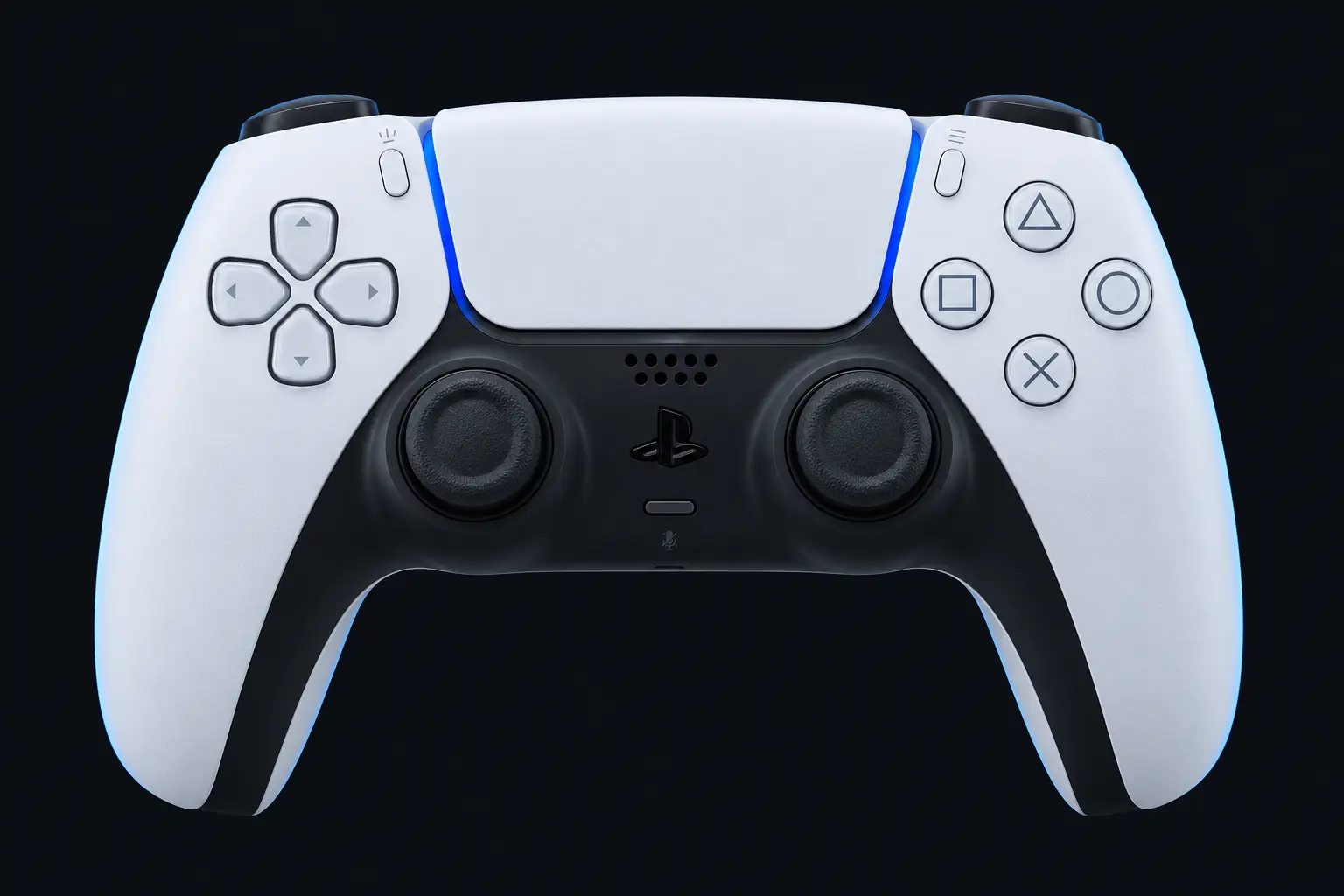
Resting-stick measurement
This describes the input exposed by your browser. Firmware and remapping software can already apply deadzones. These readings do not certify hardware condition.
Raw readings & input history
Indices are shown as reported by the browser. Unknown layouts are not assigned stick or trigger names.
Waiting for controller input.
Check every control.
- Buttons
- Triggers
- Stick drift
- Stick range
- Results
Connect a controller to begin.
Saved snapshots & comparison 0
Saved only when you choose, in this browser. Compare readings taken under the same conditions.
MORE THAN A BUTTON CHECK
A clearer picture of your controller.
Live input, useful measurements and explanations that help you decide what to try next.

Buttons & triggers
See button presses and analog trigger values as the browser receives them.
Explore
Understand stick drift
Measure resting-stick movement over ten seconds and read the results in context.
Explore
Range & deadzones
Trace your stick movement and preview a deadzone without changing your settings.
Explore
Feel the feedback
Request a short rumble when your controller and browser expose vibration support.
Explore
Multiple controllers
Switch between connected gamepads and keep each test session separate.
Explore
Keep a test record
Download a JSON report or save snapshots in this browser for comparison.
ExploreREADY WHEN YOU ARE
Plug in. Press a button. Start testing.
Connect your controller
Use a data-capable USB cable or pair it through your computer’s Bluetooth settings.
Wake up the browser
Focus this page and press a controller button. Choose the gamepad you want to inspect.
Check every input
Press the buttons, squeeze the triggers and rotate both sticks. Save a report when you are done.
WHY WE BUILT IT
Less guessing.
More getting back to the game.
A character moves on its own. A trigger feels inconsistent. A new controller looks fine, but you want to check it before your next match.
ControllerTester brings those first checks into one approachable place. See the input, understand the limits of the measurement and find a useful next step.
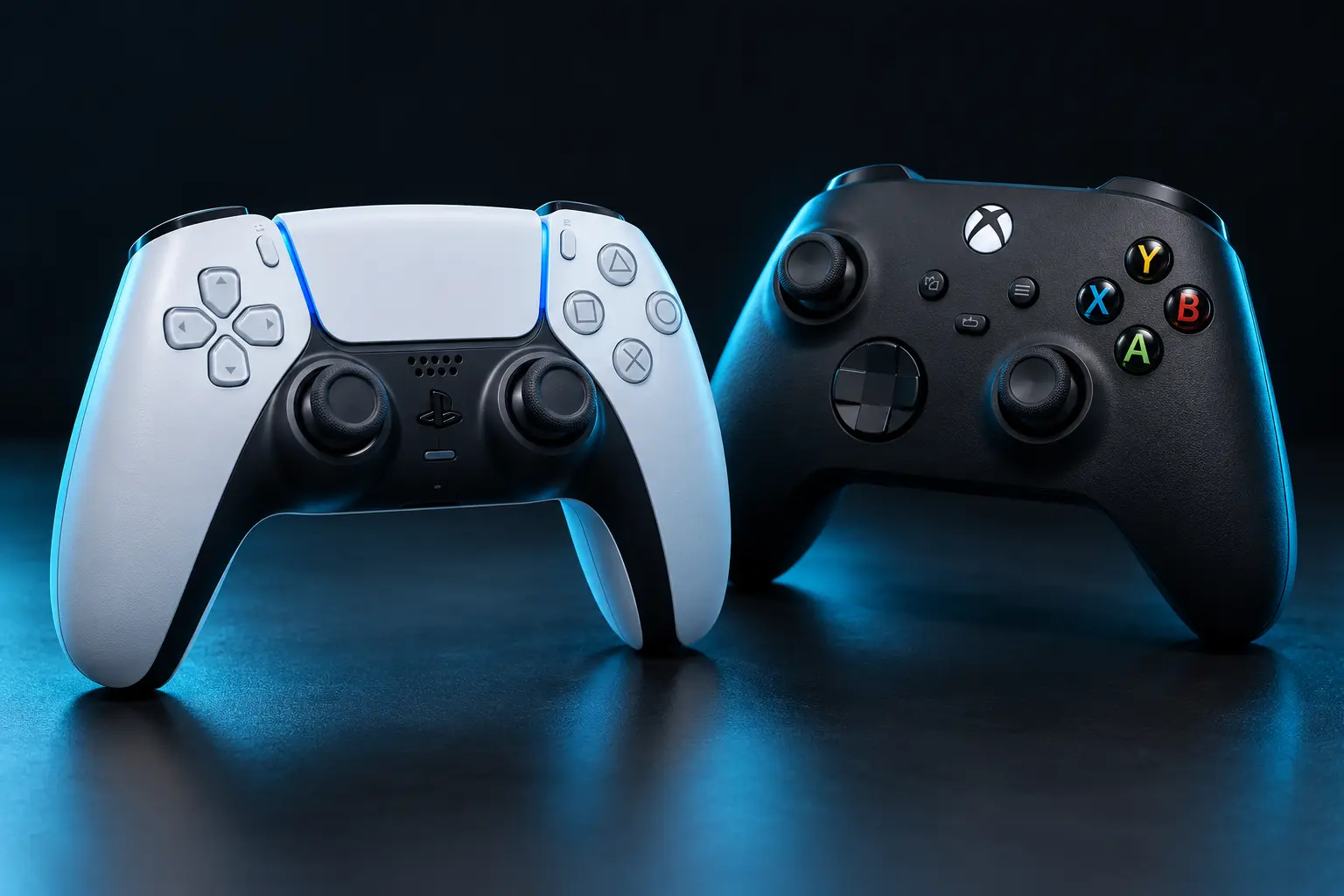
Use it alongside DS4Windows and DualSenseX when checking how a controller or remapping profile appears to your browser.
The thinking behind ControllerTester →FAMILIAR CONTROLLERS. ONE PLACE TO TEST.
Find your controller.
Available inputs depend on your operating system, browser, connection and controller mapping.
PS5 / DualSense
Check inputs with familiar PlayStation button labels.
Explore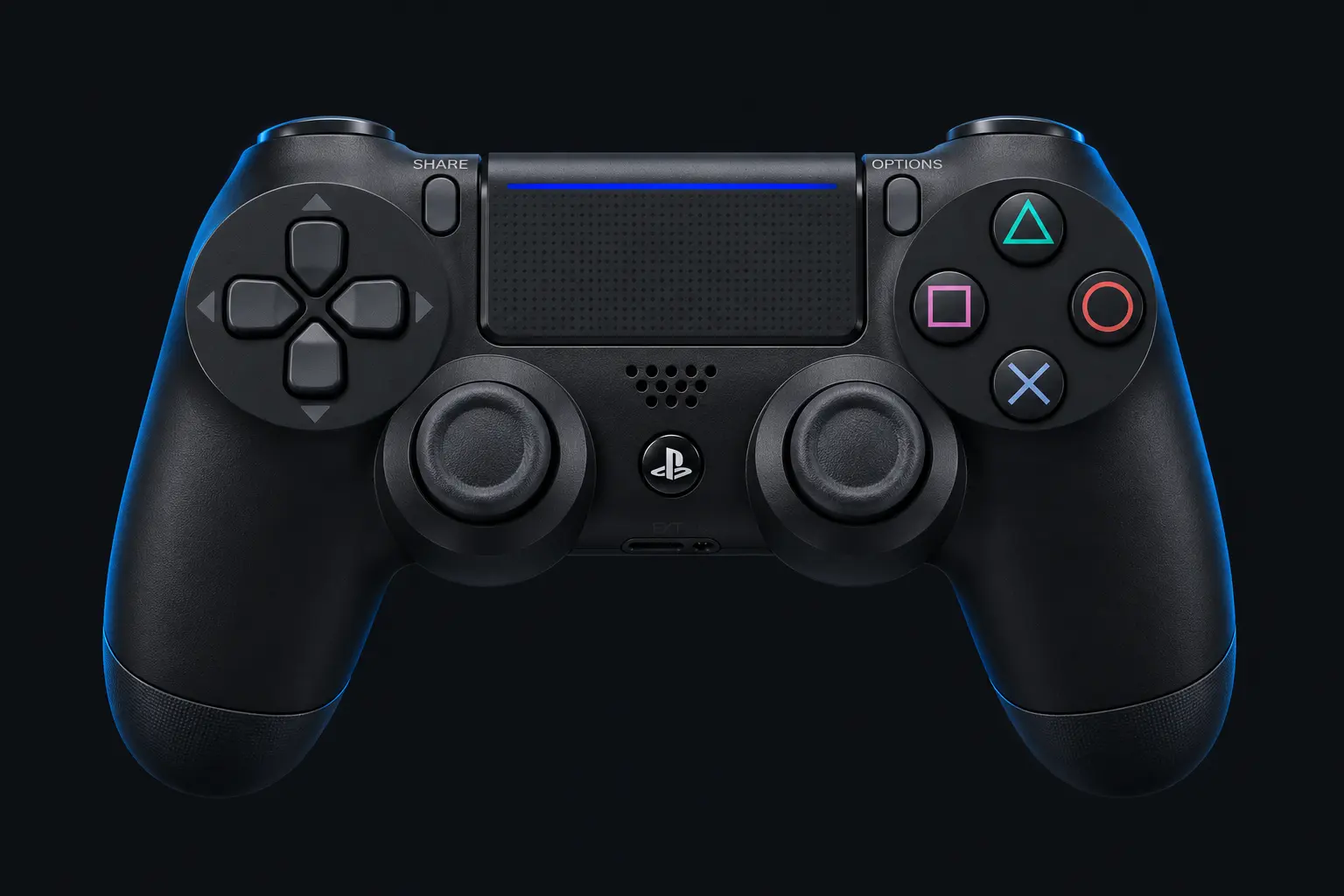
PS4 / DualShock 4
Test buttons, analog triggers and both sticks on your computer.
Explore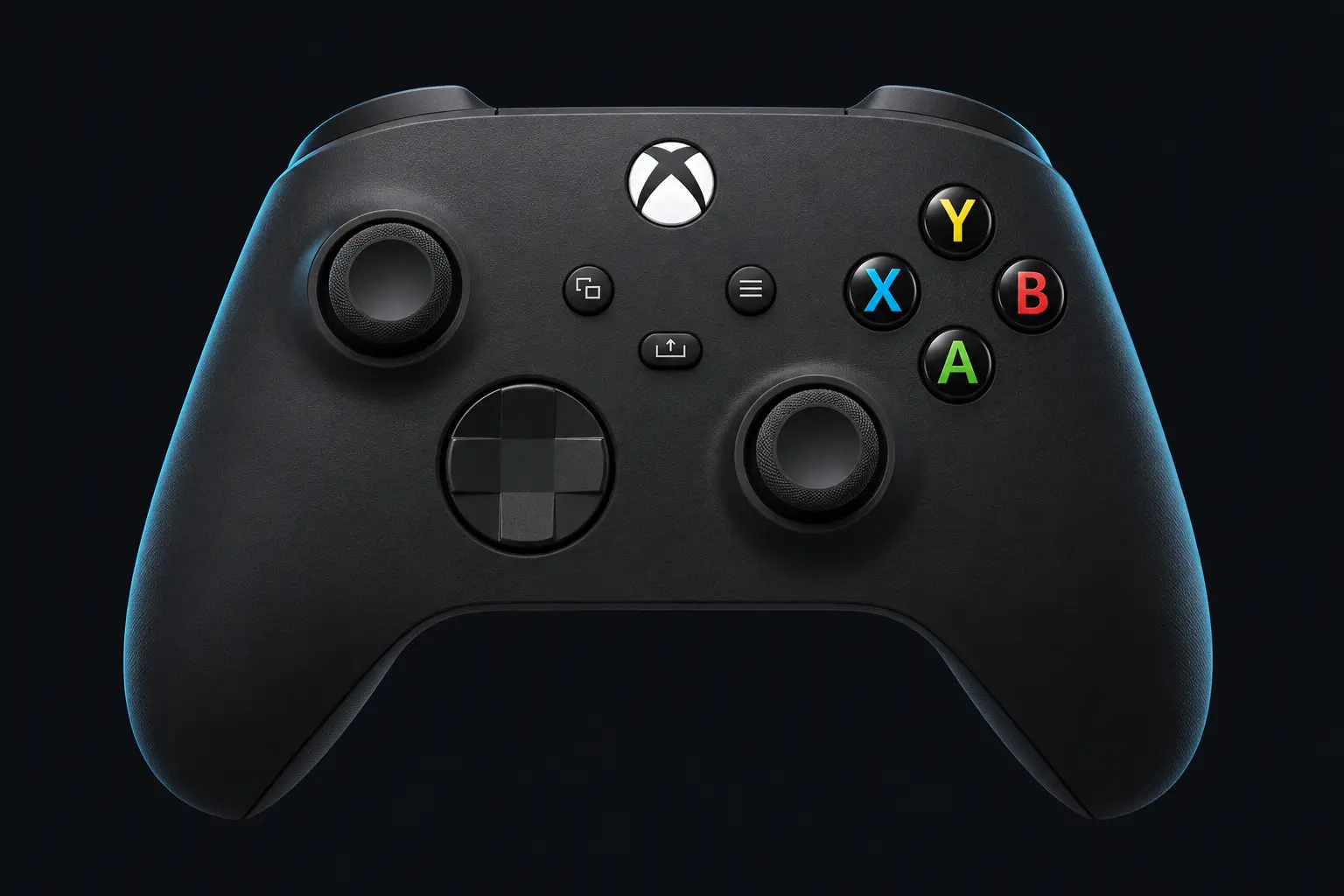
Xbox controllers
Inspect the inputs your browser receives from an Xbox-style gamepad.
Explore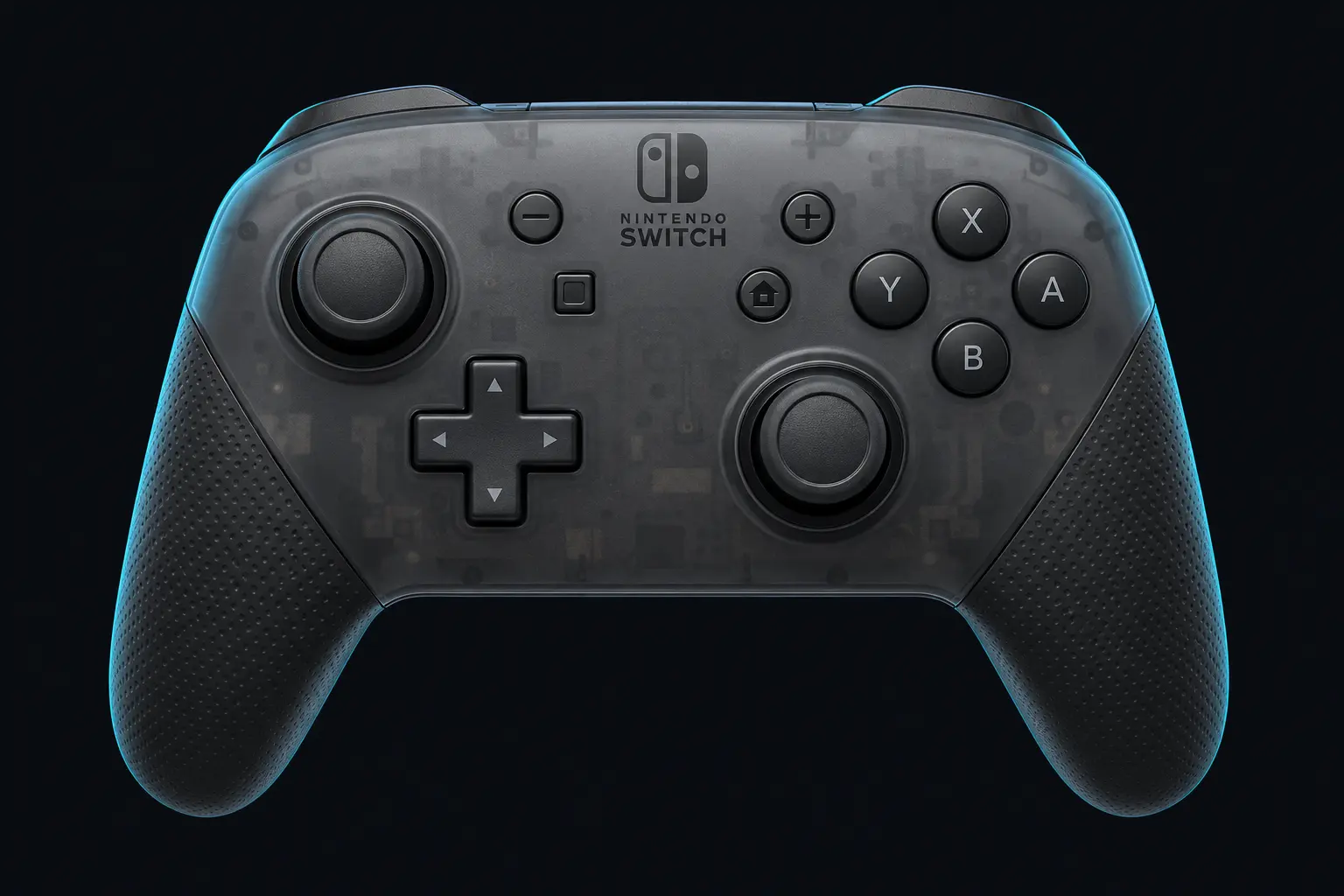
Switch Pro
Check buttons and stick movement using Nintendo-style labels.
ExploreFROM CHECKING TO UNDERSTANDING
Practical controller guides.
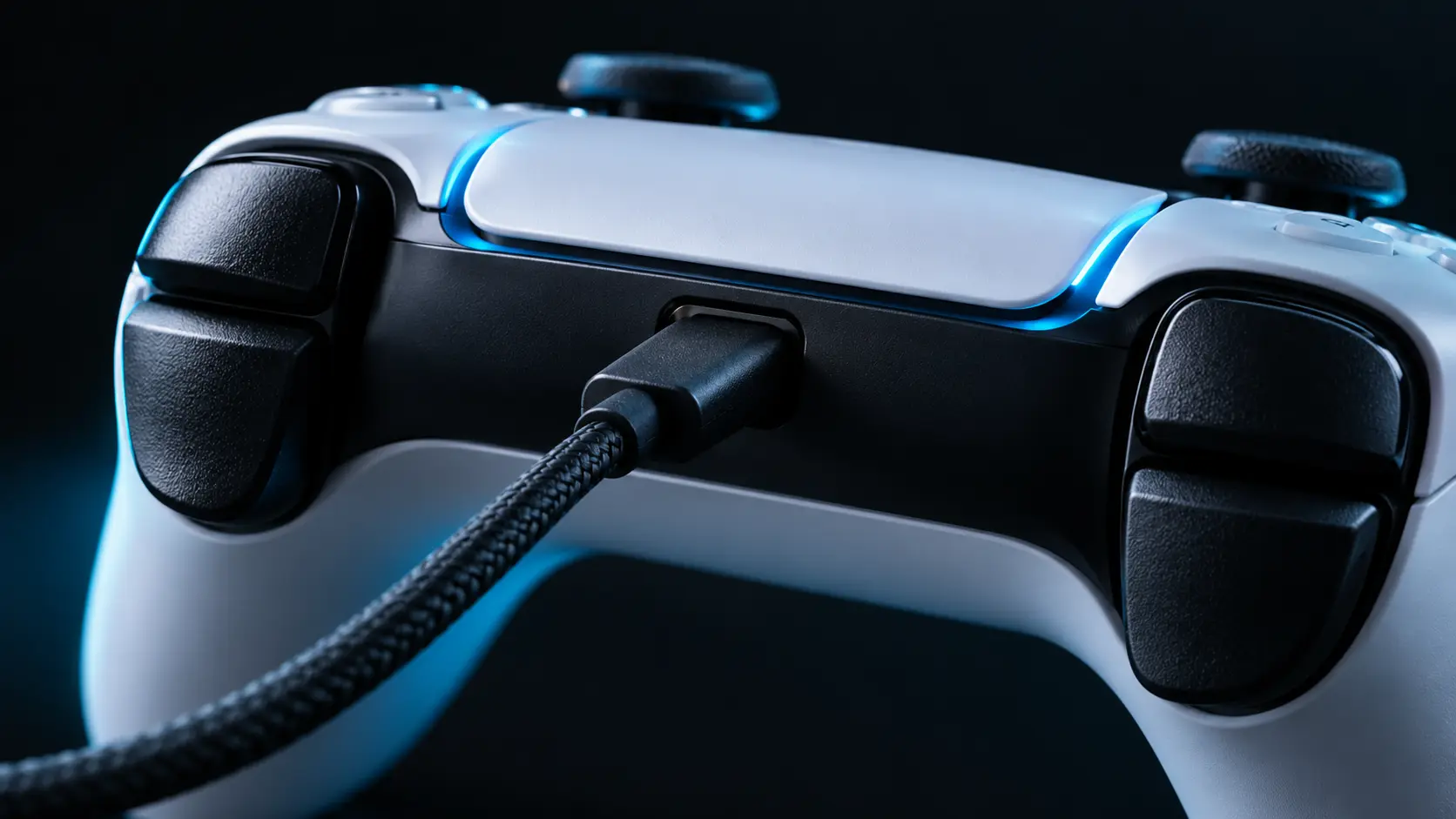
Controller not detected?
Work through connection, browser and remapping checks.
Explore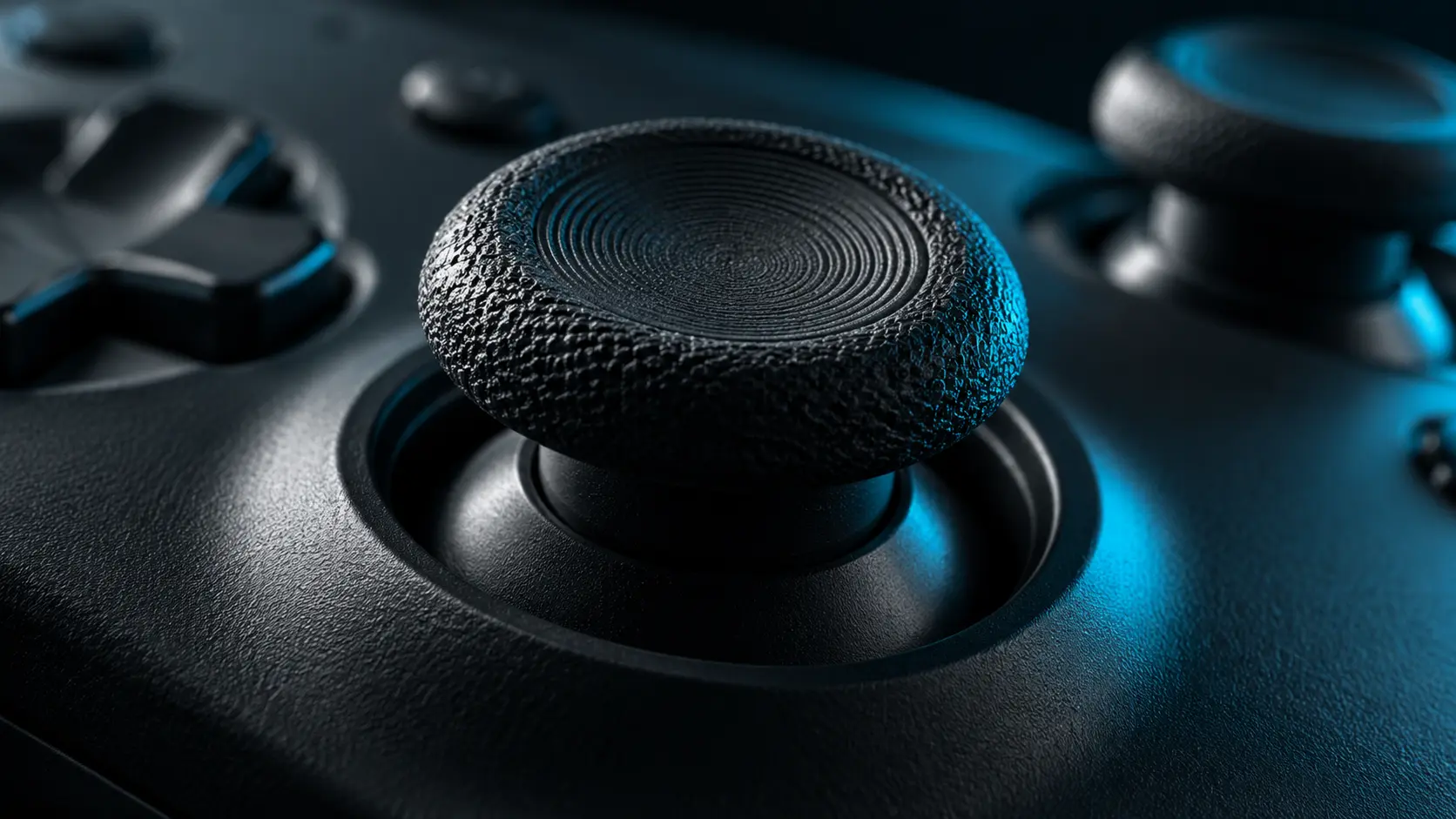
Stick drift & deadzones
Understand the difference between raw input and a game’s response.
Explore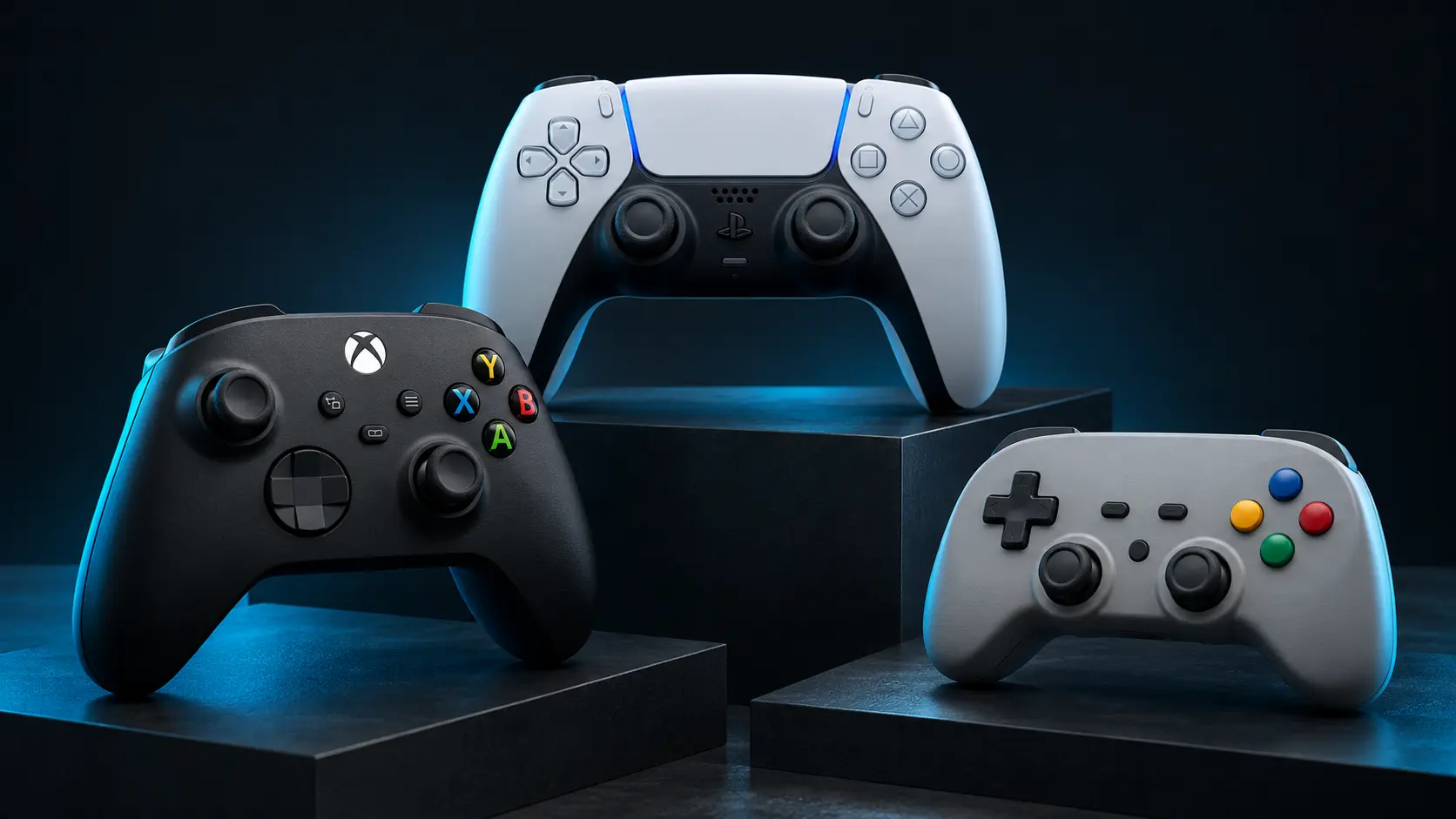
Choose a controller for PC
A practical checklist for compatibility, comfort and the games you play.
ExploreController testing questions, answered.
How do I test my controller online?
Connect it to your computer, open this page over HTTPS, focus the browser tab and press a controller button. When the browser exposes the gamepad, the tester displays its buttons and axes.
Which controllers can I test?
Any gamepad exposed through your browser’s Gamepad API can show raw inputs. Named stick and trigger diagnostics require the standard mapping. PlayStation, Xbox and Switch-style labels are provided; availability varies by browser and connection.
Can this detect stick drift?
The resting-stick test measures movement reported while you leave both sticks untouched. Firmware or remapping software may already filter that movement, so a zero reading is not proof that a physical stick is perfect.
Can a website fix stick drift?
This tester measures input. It does not repair hardware or change calibration. A deadzone in your game or controller software can hide small movements, but it also reduces sensitivity near the centre.
Why is vibration unavailable?
The browser may expose button and axis input without exposing a compatible vibration actuator. Try a supported browser or connection; lack of browser rumble does not by itself mean your controller is faulty.
Does the tester measure controller input lag?
No. Browser input snapshots cannot by themselves establish physical polling rate or end-to-end latency. This tester reports the inputs it observes and does not label animation timing as controller latency.
Are my test readings uploaded?
The tester code processes input on your device. It only saves a snapshot to browser storage when you choose, or creates a report for you to download. See the tester data page for the distinction between these readings and normal website requests.
A LITTLE GUIDANCE GOES A LONG WAY
Give your controller a checkup.
Work through the buttons, triggers and sticks, then keep a record of what you observed.